
WordPress Health From the Inside: What External Monitoring Cannot See
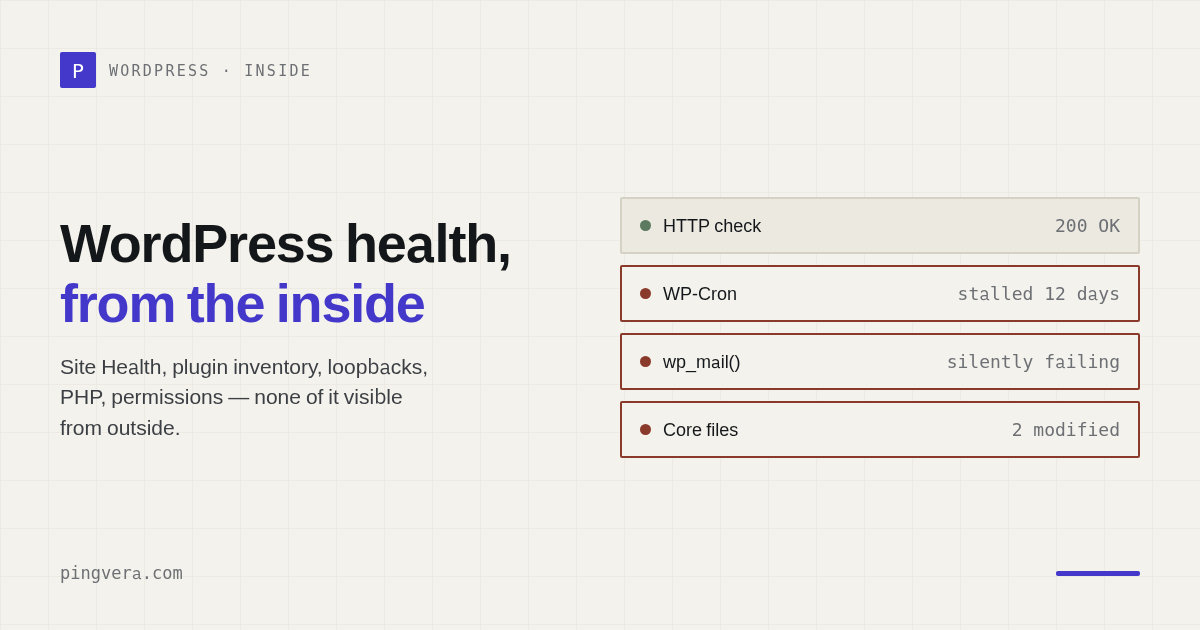
An external monitor tells you what a visitor receives.
WordPress Site Health tells you what the application knows about itself.
An agency needs both. The outside view catches a dead site, broken form, redirect, or missing page. The inside view catches conditions that may not be visible yet — failed background updates, loopback problems, outdated PHP, blocked outbound requests, unsafe debug settings, plugin inventory, and filesystem issues.
What external monitoring sees
External checks can verify:
- DNS and TLS;
- HTTP status and response time;
- regional availability;
- redirect destinations;
- expected content;
- forms and critical paths;
noindex;- broken links.
This is the customer perspective. It also keeps working when WordPress itself is too broken to report health.
What WordPress sees from inside
The official Site Health screen groups results into critical issues, recommended improvements, and passed tests. Its information section exposes WordPress, themes, plugins, directories, server configuration, database information, constants, and filesystem permissions.
Important signals include:
- WordPress version;
- active and inactive plugins and themes;
- auto-update state;
- PHP version and modules;
- communication with WordPress.org;
- REST API behavior;
- loopback requests;
- scheduled-event capability;
- HTTPS configuration;
- debug output and logs;
- filesystem writability;
- whether search engines are discouraged.
An HTTP 200 response cannot reveal most of these.
Why loopback requests matter
WordPress uses loopback requests for scheduled events and for stability checks in the theme and plugin editors. A site may appear normal while background work silently fails.
That can affect:
- scheduled posts;
- queued email;
- plugin jobs;
- updates;
- cleanup;
- integrations.
The correct response is not automatically "increase the timeout." First identify whether DNS, authentication, a security plugin, PHP sessions, or server policy is blocking the request.
Plugin inventory is context, not a verdict
Knowing plugin names and versions helps an agency:
- find outdated components;
- identify abandoned dependencies;
- connect an incident to a recent change;
- standardize stacks;
- plan PHP or WordPress upgrades.
But plugin count alone is not a health score. Twenty maintained plugins can be safer than five abandoned ones.
A two-sided monitoring model
Use a simple rule:
| Question | Best perspective |
|---|---|
| Can a visitor open the site? | External |
| Can a visitor submit the form? | External |
| Is WordPress able to run loopbacks? | Internal |
| Are plugins and core current? | Internal |
| Is the page unexpectedly noindex? | External + internal context |
| Is the server out of disk? | Server agent |
| Did a change break the public result? | External |
No single perspective should be treated as the whole truth.
Security of the connector
An inside-out connector should:
- make outbound requests only;
- avoid opening administrative ports;
- use scoped credentials;
- sign or authenticate payloads;
- minimize collected data;
- expose no secrets in logs;
- support revocation;
- report its own freshness.
If the connector has not reported recently, show "stale" or "insufficient data," not a healthy state.
What Pingvera adds
Pingvera's WordPress connector adds inside-out context such as core and plugin information and signs of defacement. External checks continue to verify the public result. For client-owned servers, an optional agent adds CPU, memory, disk, network, and container signals.
The combination helps the agency move from:
The website is slow.
to:
Response time increased after memory pressure rose on the host; the public form remained available, and no lead failures were detected.
That is a much better incident conversation.
See the site from both sides
Pingvera combines external website checks with optional WordPress and server diagnostics, using outbound connections only.
Start free — up to 5 sitesA practical WordPress health baseline
During onboarding:
- Record core, PHP, theme, and plugin versions.
- Review critical Site Health issues.
- Verify loopback and REST API behavior.
- Check outbound communication.
- Inspect debug exposure and filesystem permissions.
- Define critical public URLs and forms.
- Create a safe update and rollback process.
- Set monitoring owners.
Monthly:
- report changes and unresolved risks;
- avoid dumping the full inventory on the client;
- give the technical appendix to the maintainer;
- give the business summary to the client.
Frequently asked questions
Is WordPress Site Health enough?
No. It is valuable internal diagnostic data, but it does not continuously verify regional availability, real form delivery, external redirects, or the visitor's end-to-end path.
Does inside monitoring require administrator access?
Implementation varies. Prefer a scoped connector that sends only required health data and can be revoked without exposing the admin interface.
Should plugin updates be automatic?
That depends on risk, backup, staging, rollback, and business criticality. Monitoring should verify the public result after any update.
Sources
- WordPress Site Health screen
- WordPress Site Health overview
- WordPress WP_Site_Health class reference
Read next: WordPress Mass Hacks of 2026: How Monitoring Warns You Early · Monitoring inside your AI assistant: connect Claude or Cursor to… · The monitoring agent that cannot be told what to do · WordPress cron not running: the scheduler that only works when someone… · Check a WordPress site.