
Your Website Is Up, but Google Can't See It: Accidental Noindex Monitoring
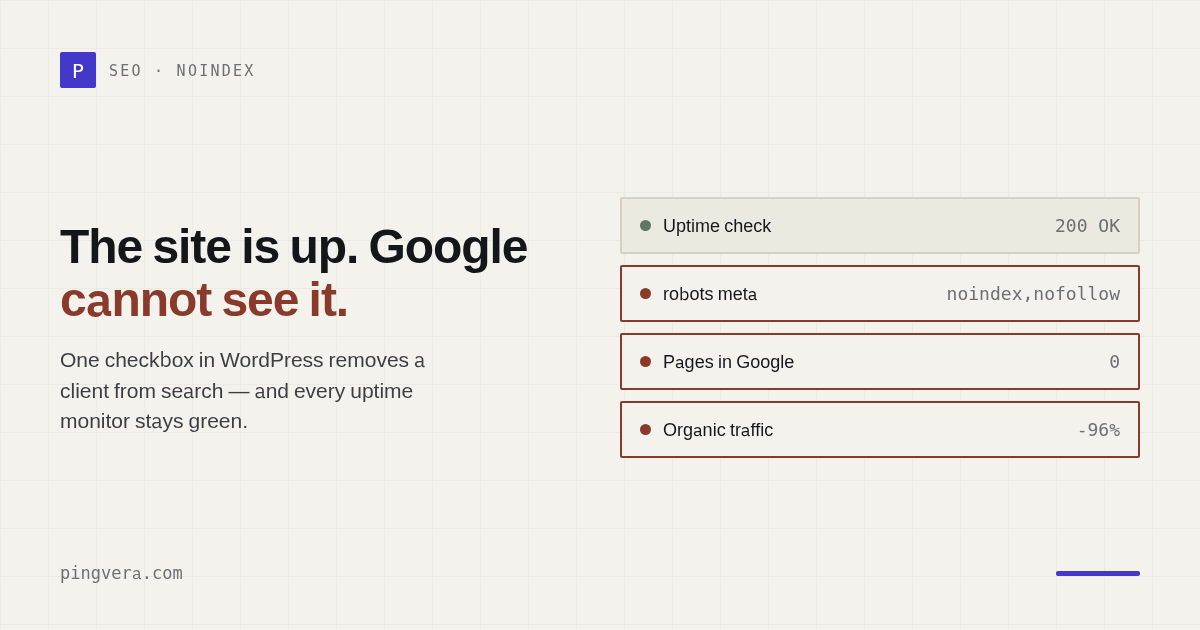
The homepage loads. Forms work. Uptime is 100%. Nothing appears broken.
Then organic traffic starts falling because a production page is carrying one small instruction:
<meta name="robots" content="noindex">An uptime monitor will celebrate. Google will eventually remove the page from search.
This is why agencies need to monitor not only whether a page responds, but whether it still behaves like the page the business intended to publish.
What noindex actually does
Google's official robots meta documentation defines noindex plainly: do not show the
page, media, or resource in search results.
The instruction can arrive in two places:
- HTML:
<meta name="robots" content="noindex"> - HTTP response headers:
X-Robots-Tag: noindex
Checking only the visible page source can miss the header. Checking only the HTTP status misses both.
How accidental noindex reaches production
A staging setting survives launch
Teams correctly block a staging environment from search, then copy the setting to production.
WordPress "discourage search engines" remains enabled
WordPress exposes this state in Site Health. A migration, clone, or rushed launch can leave it active.
An SEO plugin changes a template
A page-level setting, taxonomy setting, or template default can apply noindex to more
URLs than intended.
A CDN or server adds the header
An X-Robots-Tag rule in Nginx, Apache, a reverse proxy, or edge configuration can
affect PDFs, images, or entire paths.
A deployment changes the rendered head
In JavaScript applications, the server response and rendered document may not carry the same metadata. Monitoring needs to check the final result that search engines and users receive.
What should be monitored
Start with pages tied to revenue or acquisition:
- homepage;
- service and product pages;
- location landing pages;
- pricing;
- high-value editorial pages;
- checkout or lead-generation entry pages.
For each page, verify:
- final HTTP status;
- redirect destination;
robotsmeta directives;X-Robots-Tagheaders;- canonical URL;
- presence of expected title or content;
- whether the page unexpectedly became a soft 404.
Do not alert on every deliberate noindex page. Login, cart, internal search, staging,
and private areas may be correct. Monitoring needs an explicit expected state per URL.
Why a daily manual check is not enough
Search de-indexing is delayed. By the time traffic reports reveal the problem:
- Google may have recrawled the page;
- the team may not remember which deployment changed it;
- multiple pages may be affected;
- the client may already be asking about lost traffic.
The useful alert arrives when the directive changes, not when analytics finally show the consequence.
A practical agency policy
- Define the critical indexable URLs during onboarding.
- Record the expected robots and canonical state.
- Check after every deployment.
- Run scheduled external checks between deployments.
- Confirm the change before paging the team.
- Store the previous and current values in the incident.
- After fixing, use Search Console URL Inspection to validate the page.
What an actionable alert looks like
Weak:
SEO issue detected.
Useful:
Indexing changed on /services/emergency-plumbing
Previous: indexable
Current:meta robots="noindex,follow"
First detected: 10:42 UTC
HTTP status: 200
Deployment: 18 minutes earlier
The responder can act without recreating the investigation.
Catch indexing changes while the page is still online
Pingvera checks noindex, suspicious redirects, expected content, availability,
forms, domain, SSL, and broken links across client sites.
Fixing accidental noindex
- Confirm whether the directive is in HTML, a response header, or both.
- Identify the owner: CMS, plugin, template, application, server, or CDN.
- Remove the unintended directive.
- Purge caches.
- Re-fetch from outside your network.
- Check several affected page types.
- Request validation or indexing in Search Console when appropriate.
- Add a regression check so the same path cannot fail silently again.
Do not "fix" the problem by adding index in one layer while another layer still
returns noindex. Remove the source of the unintended rule.
Frequently asked questions
Does noindex block crawling immediately?
No. The search engine has to crawl and see the directive. It controls indexing, not guaranteed immediate crawling behavior.
Can robots.txt remove an indexed page?
Blocking crawling can prevent a search engine from seeing the noindex directive.
Follow Google's removal guidance instead of assuming robots.txt is enough.
Should every page be monitored for noindex?
Prioritize pages with acquisition, revenue, or navigation value. Expand coverage by template rather than alerting on every utility URL.
Sources
- Google: robots meta tags and noindex
- WordPress Site Health documentation
- Google: troubleshooting crawling and soft 404 errors
Read next: Marketing Attribution Without Self-Deception · Transactional Message Deliverability · How to Test a Website Backup Restore · SPF, DKIM, DMARC: why emails go to spam · Run a free site check.